
Pros
- Explains clearly for beginners what the difference is between a kit with the board and a kit with just components
- Recommendations are based on real testing and hands-on experience, not just copied specs
Cons
- Prices keep changing over time, so it's important to check the current price before ordering
- Not every kit is perfect for every use-case, you'll have to select based on your own need
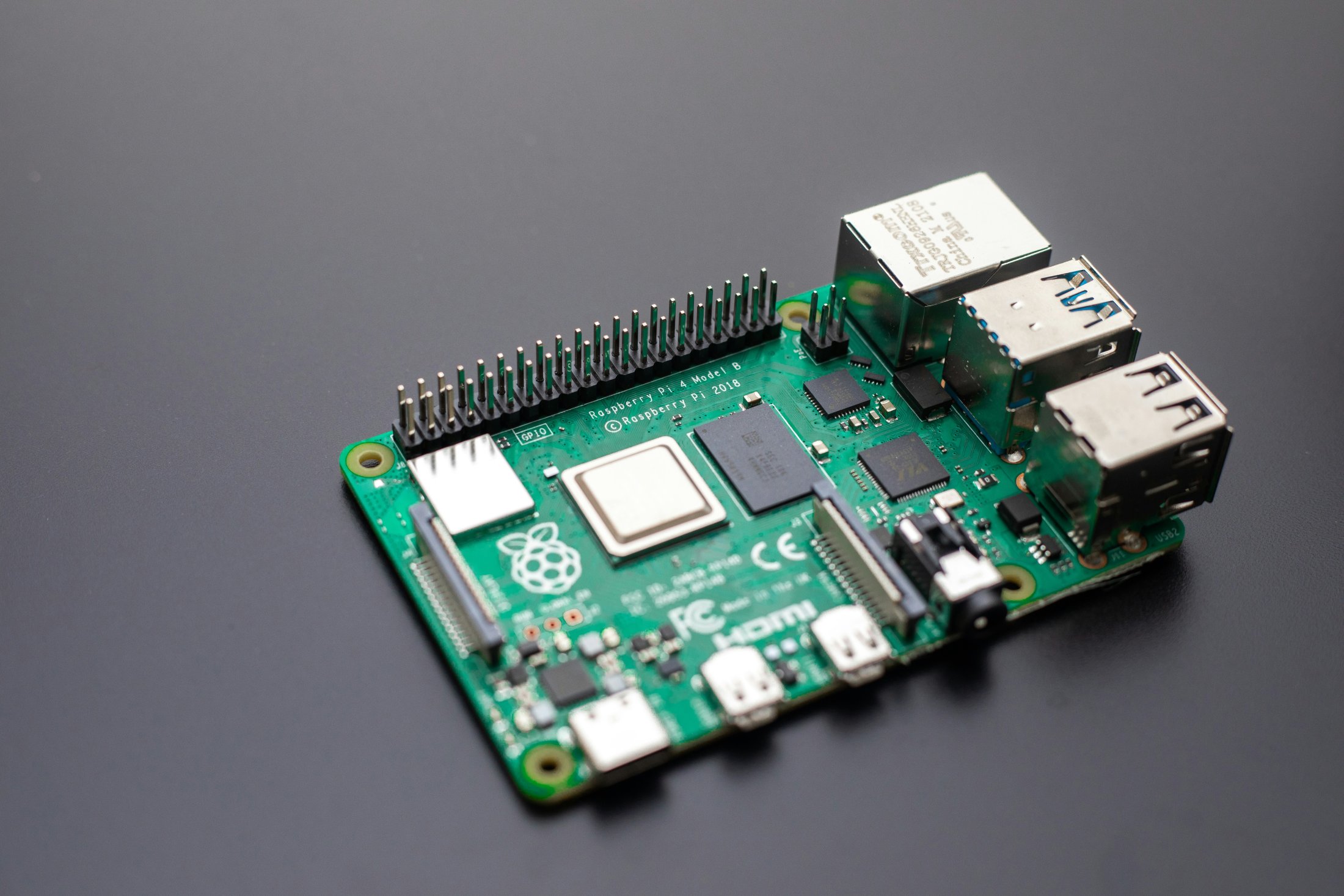
Buying Raspberry Pi in 2026 has become very confusing, because in the market now two different types of starter kits are selling, quite a lot of people buy without seeing the difference. If you are buying a Pi for the first time then first of all see which kit is good, do a little market research on it, see the difference, and the second thing is like I need the one with the board or the one with just components. In this guide we will clear this confusion, and we will also tell you along the way those steps which most people don't tell, that is after taking the kit what to do.
Software Setup
As soon as you buy the kit then how you have to set it up — this is the part where most people and beginners come and get stuck here. If your kit doesn't have SD card preloaded already, then first of all you have to download a free tool called Raspberry Pi Imager on your computer, this is made by Raspberry Pi's foundation itself and it runs easily on Windows, Mac, and Linux all three.
After that the method is something like this:
. Put the SD card into your computer (through USB card reader or if it is provided to you in the kit)
. Open Raspberry Pi Imager, select your Pi model in it (like Pi 5 or Pi 4)
. Choose your operating system in it, for beginners best "Raspberry Pi OS (64-bits)" stays the best
. Now select SD card, click on 'Write', this will completely erase the SD card and install fresh OS
. As the process completes after that put the SD card into Pi and power it on
Testing/Experience
When I tested these kits myself, I felt more difference in the power supply quality. With cheap or generic USB chargers Pi 5 kept giving undervoltage warning again and again to me, and sometimes it even randomly restarted on its own. As soon as I used the proper high current USB-C supply that comes with the kit, this problem got resolved at that same time. Same way the cooling thing also looks good only on the spec sheet, during sustained load like video encode or heavy browsing the difference of active cooling kits I felt clearly, and whereas the kits with only heatsink get quite hot.
Alternative SBCs
One thing which nobody will tell you, if Raspberry Pi is not available in stock or price feels too much, then Orange Pi type boards can also do similar work, especially those for basic desktop replacement or learning purpose. These are not as polished as Raspberry and community support is also less in these, but it can be a reasonable backup option that beginners should know about.
Mistakes Beginners Make
Quite a lot of new buyers make the same mistake again and again, they only see the price and order it at that same time, without checking whether the board is actually included in that kit or not. Bigger issue this creates is that people ignore the SD card's speed or class, whereas slow SD card makes boot time very slow and while updating software also it starts lagging. Third common mistake is that people try to use old Pi 4's power supply for Pi 5, whereas Pi 5 supports a different high current supply, this is not compatible.
How to Choose an SD Card
Before buying, just seeing storage size (32GB, 64GB) and selecting SD card is not enough, card's speed is equally important too, in this Class 10 should be minimum but if affordable then A1, or A2 rated card will stay more best, we will suggest this only because these have quite improvement in random read write speed, especially when using Pi like a desktop or running multiple apps in it. And the cheap or unbranded SD cards that are there, in these the chances of getting corrupted are also higher and there is also risk of data loss, that's why take branded card like Samsung or SanDisk, these are expensive but their quality stays that good.
FAQs
Can I use Raspberry Pi like a laptop?
Yes you can use it, like basic work such as browsing, document editing, coding, Pi can work like a small desktop for this, especially with the 4GB or 8GB RAM Pi 5, but in this heavy software like video editing or gaming, this is not for these.
Do I need a separate monitor for Raspberry Pi?
No, for this any HDMI monitor or TV can be used in this, just according to Pi model the correct cable standard HDMI or micro HDMI should be there.
Specification |
Details |
| Processor | Quad-core 64-bit Arm Cortex-A76, 2.4GHz |
| Graphics | VideoCore VII GPU |
| RAM | 8GB / 16GB LPDDR4X (model ke hisab se) |
| Display Output | Dual 4K HDMI output |
| Video Decode | 4K60 hardware decoding |
| Storage | microSD card slot |
| Wi-Fi | Dual-band 802.11ac |
| Bluetooth | Bluetooth 5.0 (BLE support) |
| USB Ports | 2x USB 3.0, 2x USB 2.0 |
| Networking | Gigabit Ethernet (PoE+ compatible with separate HAT) |
Reader Rating
4.0/5 average from 1 reader
No comments yet — be the first to share your thoughts.